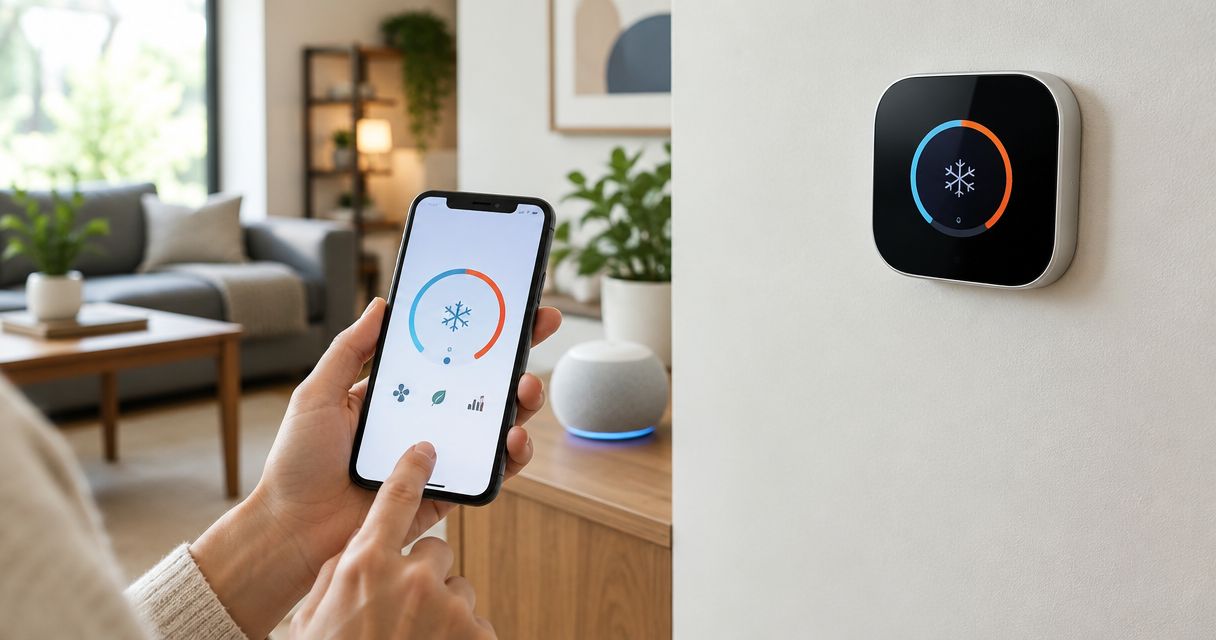
Instead of walking to the thermostat every time the house feels off, connect your HVAC system to Google Home so you adjust heat and cool by voice from any room.
- A smart thermostat is the bridge between your HVAC system and Google Home in 2026.
- Nest, ecobee, and Honeywell Home models link in the Google Home app in under 10 minutes.
- West Heating & Cooling installs compatible thermostats for Lake of the Ozarks homes.
- You need Wi-Fi, a Google account, and usually a C-wire before setup starts.
Why this matters
Voice control is not a gimmick when you are upstairs and the living room is freezing. In 2026, most new smart thermostats talk to Google Assistant out of the box. The catch is simple: your furnace or AC does not plug into Google by itself. You need a thermostat that speaks both languages — HVAC wiring on one side, Wi-Fi and Google Home on the other.
West Heating & Cooling is a family-owned HVAC contractor serving Camdenton, Osage Beach, Lake Ozark, Warsaw, and Lebanon. If your current thermostat is still a basic dial or a non-smart digital unit, a proper install is the clean path. If you already own a compatible model, the Google link is a software step you can finish at home.
The workflow below covers both paths: fresh install and already-mounted thermostat.
Before you start
Gather these before you open the Google Home app:
- A Google account signed into the Google Home app on a phone or tablet on the same Wi-Fi as the thermostat
- A compatible smart thermostat already on your HVAC system (Nest, ecobee, Honeywell Home, Emerson Sensi, and several others work in 2026)
- Your home Wi-Fi password and a stable 2.4 GHz network for most models
Gotcha: Many older homes at the Lake skip a C-wire (common wire). Without it, some thermostats drop offline or drain batteries fast. Check the wall plate for a wire on the C terminal before you buy. If C is missing, a pro can add one or use an adapter — do not force a no-C install and hope.
If you still need a thermostat pick, start with a shortlist of best smart thermostats for HVAC systems that list Google Assistant support on the box.
Confirm your HVAC and thermostat are ready
- Turn the HVAC system off at the breaker if you are swapping hardware. For software-only linking, leave power on.
- Open the thermostat’s own app and confirm it already controls heat and cool correctly. Fix wiring or scheduling issues here first — Google only mirrors what the thermostat already does.
- Note the model name from the device settings screen. You will search for that exact brand inside Google Home.
- Update the thermostat firmware in its manufacturer app. Outdated firmware is a common reason Google never finds the device.
Expected result: The thermostat app shows current temperature, mode (Heat / Cool / Auto), and a solid Wi-Fi icon. If Wi-Fi is flaky, stop and fix that before Google setup.
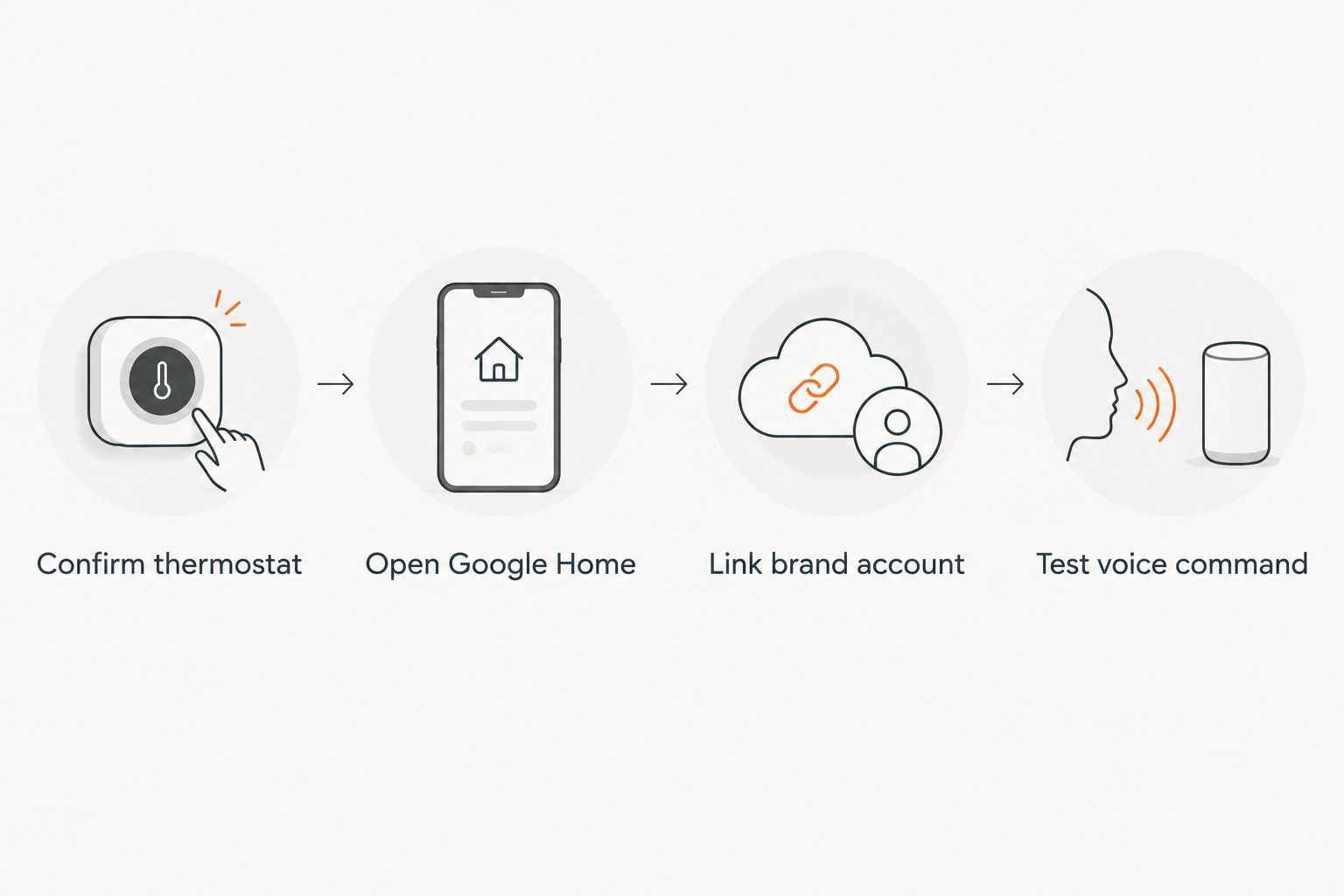
Set up the Google Home link
- Open the Google Home app and tap the + (Add) icon.
- Choose Set up device, then Works with Google.
- Search for your thermostat brand (for example Nest, ecobee, or Honeywell Home).
- Tap the brand result and sign in with the same account you use in that brand’s app. Grant the permissions Google requests.
- Select the thermostat when it appears and assign it to a home and a room (Living room, Upstairs, Lake house main floor — whatever matches how you talk).
- When prompted, set a clear spoken name such as thermostat or downstairs heat. Avoid cute names you will forget under stress.
Expected result: The thermostat tile shows inside Google Home with live temperature. Saying “Hey Google, set the thermostat to 72” should change the setpoint within a few seconds.
Nest-specific path
Nest devices often already sit under your Google account. If the Nest app is merged into Google Home:
- Open Google Home → Settings → confirm the Nest home is the active home.
- If the thermostat is missing, use Add → Google Nest or partner device and follow the on-screen pairing.
- For a brand-new Nest on bare HVAC wiring, finish the Nest install flow first, then return here. A full hardware walkthrough lives in the Nest thermostat HVAC connection guide.
Expected result: Nest temperature and mode match what you see on the wall unit.
ecobee and other partner brands
Partner brands keep their own cloud account. Google Home only gets a token:
- Complete brand-app setup and naming first.
- In Google Home, pick the brand under Works with Google and authorize.
- If two homes appear, pick the one that matches your physical address so routines do not fire at the wrong property.
Expected result: One thermostat entity in Google Home, not duplicates from multiple logins.
Run voice commands and routines whenever the setpoint changes
Once linked, treat Google as a remote for modes you already trust.
Core commands that work in 2026:
- “Hey Google, set the thermostat to 68 degrees.”
- “Hey Google, turn on heat.” / “turn on cooling.”
- “Hey Google, what’s the temperature inside?”
- “Hey Google, set the thermostat to Eco” (Nest) or the brand’s equivalent energy mode
Build a routine for arrivals and bed:
- In Google Home, open Routines.
- Create Good morning or I’m home: set thermostat to your daytime number, turn on preferred lights if you use them.
- Create Good night: drop heat a few degrees, or switch to cool setback in summer.
- Optional: add a location trigger so the house starts conditioning when your phone crosses a geofence on the drive back from town.
Expected result: One voice phrase or automatic trigger changes HVAC mode without opening any thermostat app.
For multi-level lake homes, pair this with zoning so upstairs and downstairs do not fight. See options in the zoned HVAC systems guide for multi-story homes if one thermostat is not enough coverage.
Need a compatible thermostat install?
West Heating & Cooling serves the Lake of the Ozarks with free quotes.
Troubleshooting
Google Home cannot find the thermostat
Confirm the thermostat is online in its own app. Restart the thermostat, then force-close and reopen Google Home. Re-link under Works with Google if the token expired.
Voice changes temperature but the HVAC never starts
The Google link is fine; the equipment side is not. Check the thermostat’s heat/cool call, filter, and breaker. If the wall unit shows the new setpoint but the furnace or AC stays quiet, call for service — that is an HVAC fault, not a Google fault.
Two thermostats show up or the wrong house responds
Remove the extra device in Google Home device settings. Keep one Google home profile per physical property. Vacation lake houses often pick up a second home by accident during setup.
Commands work on phone but not on a Nest speaker
The speaker may be on a different Google account or a different Home. Open the speaker’s device settings and move it into the same Home as the thermostat.
Thermostat drops offline after a few hours
Classic weak power or crowded 5 GHz-only Wi-Fi. Move the unit to 2.4 GHz, check C-wire voltage, and avoid placing the thermostat on a metal box that kills signal. Persistent dropouts after that usually need a tech visit.
Customize your workflow
Once basic voice control is solid, expand scope:
- Guests and rentals: Give visitors a temporary Google Home guest mode or a simple wall card with the three commands you allow. Do not hand out full account access.
- Seasonal setbacks: Build summer and winter routines so shoulder seasons do not waste runtime when the house sits empty midweek.
- Maintenance reminders: Pair smart runtime data with a real service plan. Filters and coils still need hands-on work; software does not replace that. Compare structured options in the HVAC maintenance plans guide.
- Whole-home comfort stack: If humidity or air quality is the real complaint, thermostat voice control alone will not fix it — dehumidification and filtration sit upstream of setpoint tricks.
West Heating & Cooling handles install, repair, and 24/7 emergency service across the Lake of the Ozarks. When the thermostat is ready but the equipment is not, start at the West Heating & Cooling home page for a free quote.
FAQ
Can I connect any HVAC system to Google Home?
No. Google Home needs a compatible smart thermostat on the system. The furnace or AC itself does not join Google without that bridge device.
What’s the best way to connect an HVAC system to Google Home in 2026?
Install a Google-compatible smart thermostat, finish its brand app setup, then link the brand under Works with Google in the Google Home app. Test a setpoint change by voice before building routines.
Do I need a Nest thermostat for Google Home?
No. Nest is convenient because it sits in the Google account, but ecobee, Honeywell Home, and other Works with Google brands connect the same way through account linking.
Is Google Home better than the thermostat’s own app?
Google Home wins for voice and multi-device routines. The brand app still wins for deep schedules, sensor rooms, and installer settings. Most households use both.
Why won’t Google change my heat or cool mode?
Usually the thermostat is offline, linked to the wrong Home, or the HVAC equipment is locked out by a safety switch. Fix Wi-Fi and equipment first, then relink.
Can renters connect HVAC to Google Home?
Only if the landlord allows a smart thermostat and you can create or share the brand account. Do not rewire a rental panel without written approval.
How long does Google Home HVAC setup take?
Software linking takes about 5 to 10 minutes once the thermostat is online. A full thermostat swap with wiring can take one service visit.
Does voice control raise energy bills?
Voice itself does not. Larger swings from casual commands can. Use routines with modest setbacks and keep schedules in the thermostat app as the source of truth.
One last thing
The thermostat name you pick on day one becomes the phrase you shout from the dock or the hallway at 2 a.m. Name it something boring and clear. Cute names age poorly the first night the house will not heat and you cannot remember what you called the thing.